Using HashiCorp Vault Signed SSH with AAP
In this post Using signed SSH certificate in AAP, we sign the the SSH key on command line before we create the AAP machine credential. In this article, we will use HashiCorp Vault to sign the SSH key on-the-fly from AAP machine credential.
Enable the HashiCorp Vault SSH secret engine
See the HashiCorp doc on setting up Signed SSH certificates
We will be setting a -path called ssh and generate a signing key.
vault secrets enable -path=ssh ssh
vault write ssh/config/ca generate_signing_key=true
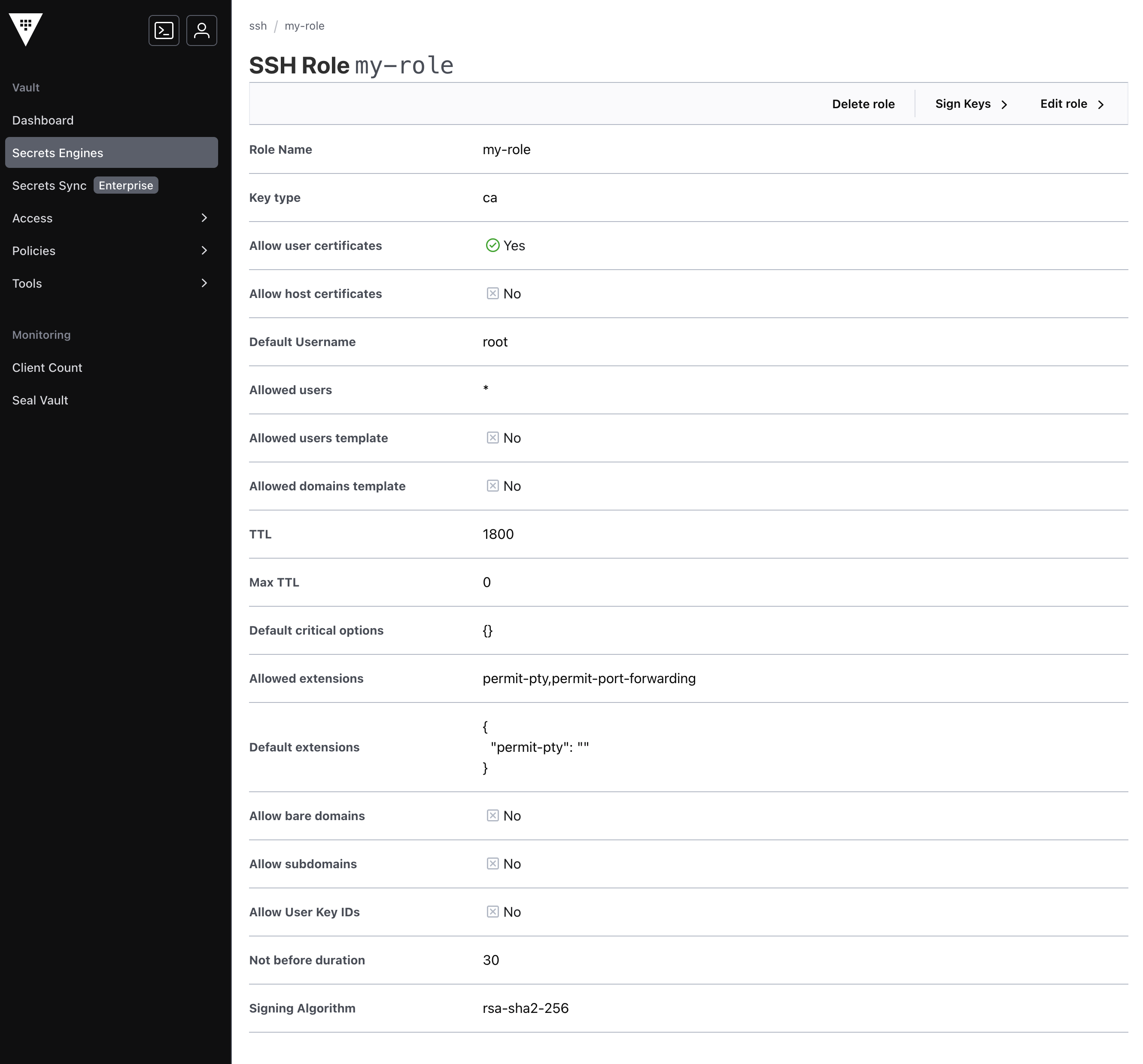
Create a role called my-role with default user root
vault write ssh/roles/my-role -<<"EOH"
{
  "algorithm_signer": "rsa-sha2-256",
  "allow_user_certificates": true,
  "allowed_users": "*",
  "allowed_extensions": "permit-pty,permit-port-forwarding",
  "default_extensions": {
    "permit-pty": ""
  },
  "key_type": "ca",
  "default_user": "root",
  "ttl": "30m0s"
}
EOH
From HashiCorp Vault console, it will look like
Setup Managed Hosts
Download the signing public key from HashiCorp Vault to managed host
curl -o /etc/ssh/trusted-user-ca-keys.pem https://infra-1.lab.automate.nyc:8200/v1/ssh/public_key
Add the public key to sshd trusted user CA keys in /etc/ssh/sshd_config
TrustedUserCAKeys /etc/ssh/trusted-user-ca-keys.pem
Restart sshd service
Setup AAP Credentials
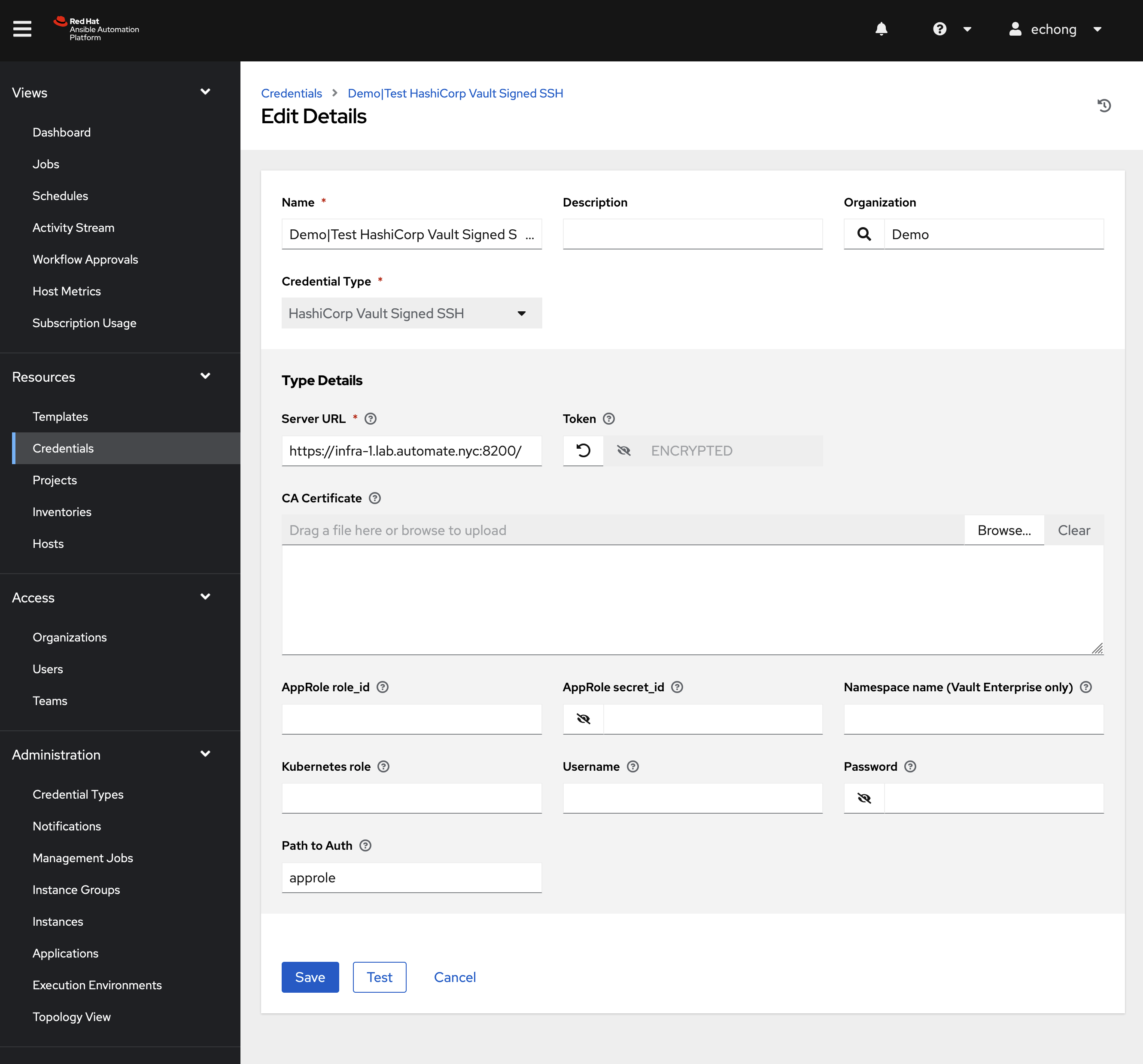
Setup HashiCorp Vault Signed SSH lookup credential using any supported authentication method with HashiCorp Vault.
Generate a SSH key pair using ssh-keygen on command line. The public and private keys will be used in next step.
Setup Machine credential in AAP. Copy generated private key to SSH Private Key text box.
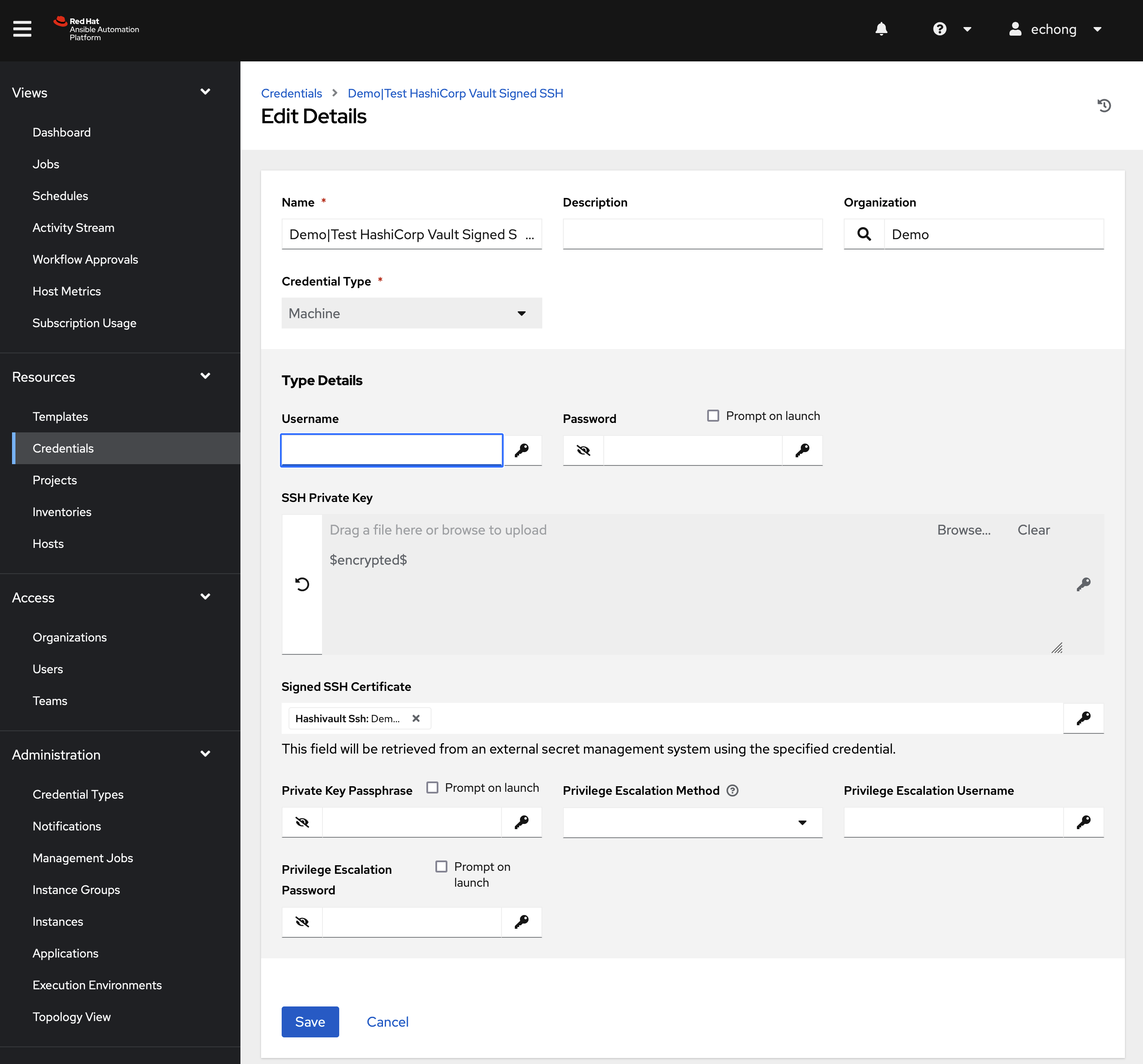
Selected the created HashiCorp Vault Signed SSH lookup credential for Signed SSH Certificate. Copy generated public key to Unsigned Public Key text box. Enter the -path we created for the HashiCorp Vault secret engine (ssh in this example). Enter the role we created for the secret engine (my-role in this example)
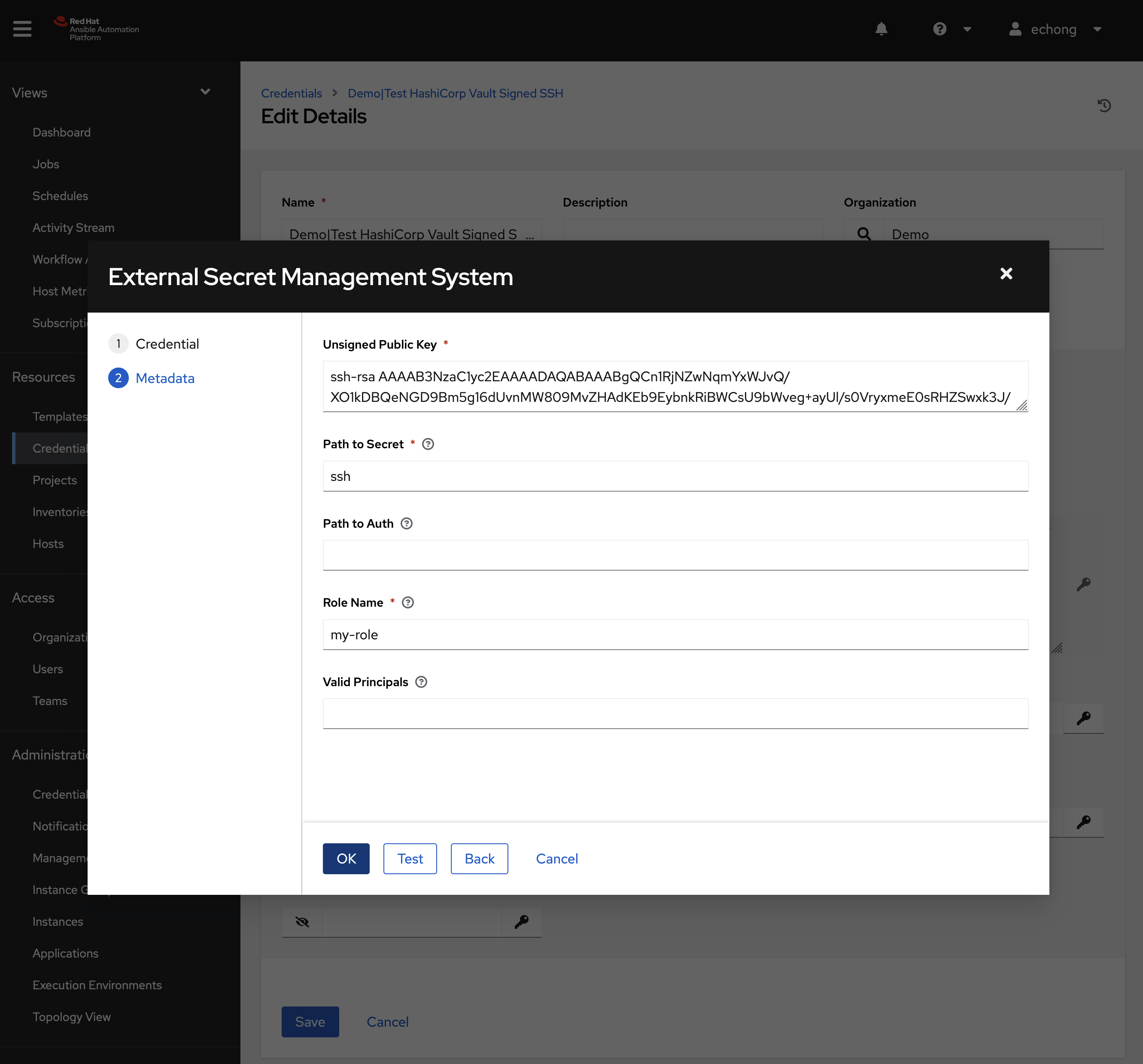
Use the Test button to confirm the configuration.
Testing
At runtime, a new certificate will be added to the execution environment on AAP. Following message will be added to the job output:
Identity added: /runner/artifacts/4261/ssh_key_data (root@node79.lab.automate.nyc)
Certificate added: /runner/artifacts/4261/ssh_key_data-cert.pub (vault-root-ebdeb8a00c160ad918e6e8238bf92c27dfea3ec340e230de3ea59093e3773c38)
On the client side, you should see the syslog message indicating that the certificate being used for login
Aug 27 13:14:07 node79.lab.automate.nyc sshd[1490]: Accepted publickey for root from 192.168.0.101 port 42668 ssh2: RSA-CERT SHA256:6964oAwWCtkY5ugji/ksJ9/qPsNA4jDePqWQk+N3PDg ID vault-root-ebdeb8a00c160ad918e6e8238bf92c27dfea3ec340e230de3ea59093e3773c38 (serial 10466434135153983140) CA RSA SHA256:HUT+GSDsOwFaCfW9l/CvOg+7GYu2UIQS1Yfcwr1uuYo
Update
2025-09-16 Checkout this blog post from Hashicorp: Managing Ansible Automation Platform (AAP) credentials at scale with Vault
Leave a comment